 Skip to content
 - Why Outdated Television Software Breaks Your Streaming Setup
- Step One: Locate Your Current Software Version
- Step Two: Prepare Your Home Network Connection
- Step Three: Download and Install the Update Over the Air
- Step Four: Use a USB Drive for Manual Installation
- Step Five: Revalidate Your Streaming Applications
Why Outdated Television Software Breaks Your Streaming Setup
Many UK living rooms rely on internet-connected televisions to deliver live channels and on-demand media. Yet, streaming apps frequently freeze or fail to launch entirely. Old operating system software usually causes this frustration. If your television runs on outdated firmware, modern streaming applications simply won’t communicate correctly with your hardware. Manufacturers push out patches regularly to fix bugs, secure connection protocols, and improve app compatibility. Ignoring these notifications leaves your setup vulnerable to crashes. Performing a smart tv firmware update solves many hidden performance bottlenecks before you start blaming your broadband provider.
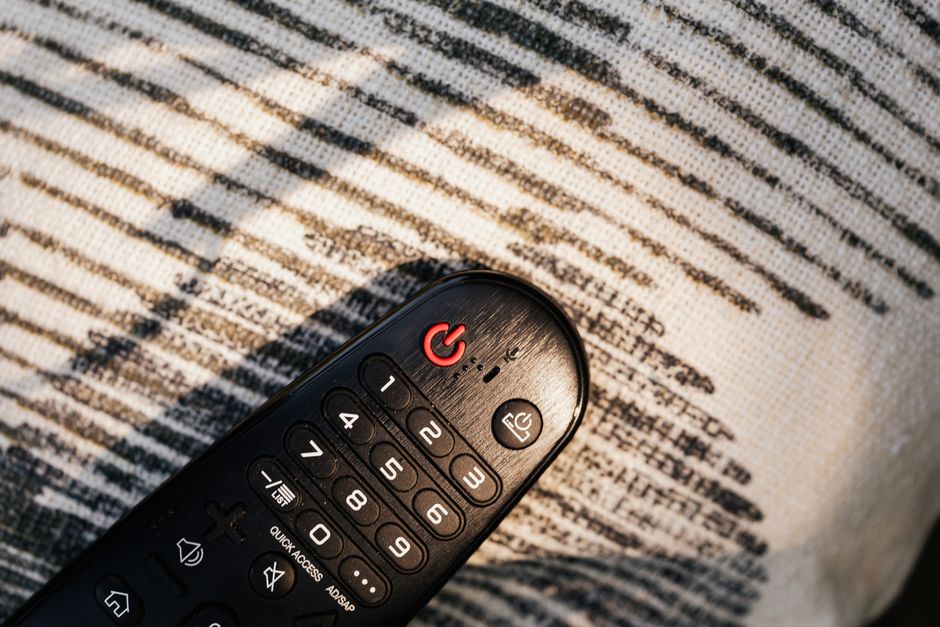
Most modern screens from brands like Samsung, LG, and Sony download background files automatically. Sometimes this process fails. Power outages, unstable Wi-Fi signals, or interrupted downloads leave your system stranded on a broken software build. You need to take manual control.
Step One: Locate Your Current Software Version
Before touching any installation buttons, find out what version your television currently runs. Every manufacturer hides this menu in a slightly different location. On Samsung sets using Tizen, you’ll dig into the All Settings menu under Support. LG webOS users need to navigate down to General, select About This TV, and look for Check for Updates. Sony and Philips sets running Google TV place this information inside the System preferences under About.
Write down your current version number. Compare it against the support page for your specific model on the manufacturer’s official UK website. If your numbers match an old release date, you’re due for a refresh. Don’t skip this step. Knowing your exact model number prevents you from downloading incompatible files if you ever decide to use a USB stick for a manual installation.
Step Two: Prepare Your Home Network Connection
A failed download ruins your system software. You must secure a rock-solid internet connection before initiating the transfer. Wi-Fi drops halfway through a two-gigabyte system download can corrupt your motherboard’s flash memory. That turns your expensive television into a heavy paperweight.
Plug an Ethernet cable directly into the back of your panel if possible. If you must rely on wireless, make sure your router sits close by without heavy obstructions blocking the signal. Readers who want to dig deeper into network stability can check our broadband configuration details for essential home network tips. A stable ping matters just as much as raw download speed when pulling system files from a manufacturer’s server.
Step Three: Download and Install the Update Over the Air
With your network secured, navigate back to the software update menu. Select the option to update now or check for updates online. Your screen will ping the manufacturer’s server to search for newer packages. If a file exists, a prompt appears asking for your confirmation to download.
Accept the prompt. Watch the progress bar crawl across your display. Resist the urge to press buttons on your remote control during this phase. Do not switch off the mains power socket. The television will restart itself once the installation finishes. This reboot can take up to five minutes. Let the hardware complete its boot cycle peacefully.
Step Four: Use a USB Drive for Manual Installation
Sometimes your television fails to pull updates over the internet. Built-in network cards drop packets, or DNS servers block the connection. A manual USB installation serves as your reliable backup plan.
Grab an empty USB flash drive formatted to FAT32 or exFAT. Visit the support section of your television brand’s website using a laptop or computer. Type in your exact model number—found on the sticker at the back of the panel. Download the compressed firmware zip file directly to your computer. Unzip the archive, and copy the extracted folder onto the root directory of your USB stick.
Plug the drive into the USB port on your television. Return to the software menu and choose the USB update option. The system will scan the drive, verify the checksum of the software package, and flash the new firmware safely. This method bypasses local network gremlins entirely.
Step Five: Revalidate Your Streaming Applications
Your television runs the latest software version now. The job isn’t finished yet. System upgrades often reset default app permissions, clear cached data, or alter video codec handshakes. Launch your installed media applications to test their responsiveness.
Check if your favorite streaming apps load their menus faster. Verify that high-definition video streams play smoothly without audio desynchronisation. If an application crashes immediately after a system update, uninstall the app completely. Restart the television one more time, and reinstall a fresh copy from the official app store. This clears out lingering corrupted cache files left behind by the older firmware version.
Keep your automatic update toggle switched on for the future. Let your television handle routine maintenance overnight while you sleep. A fresh smart tv firmware update keeps your hardware running efficiently for years.
Related reading
- How to Diagnose Smart TV App Crashes on UK Broadband Networks
- How Electronic Programme Guides Work on UK IPTV Services
