 Skip to content
 IPTV Setup UK – Installation Guide
Follow our IPTV setup UK guide for Firestick, Android TV, Smart TV, IPTV Smarters, TiviMate, Windows, Mac, iPhone, iPad and MAG devices. Choose your device or player below and follow the setup steps.
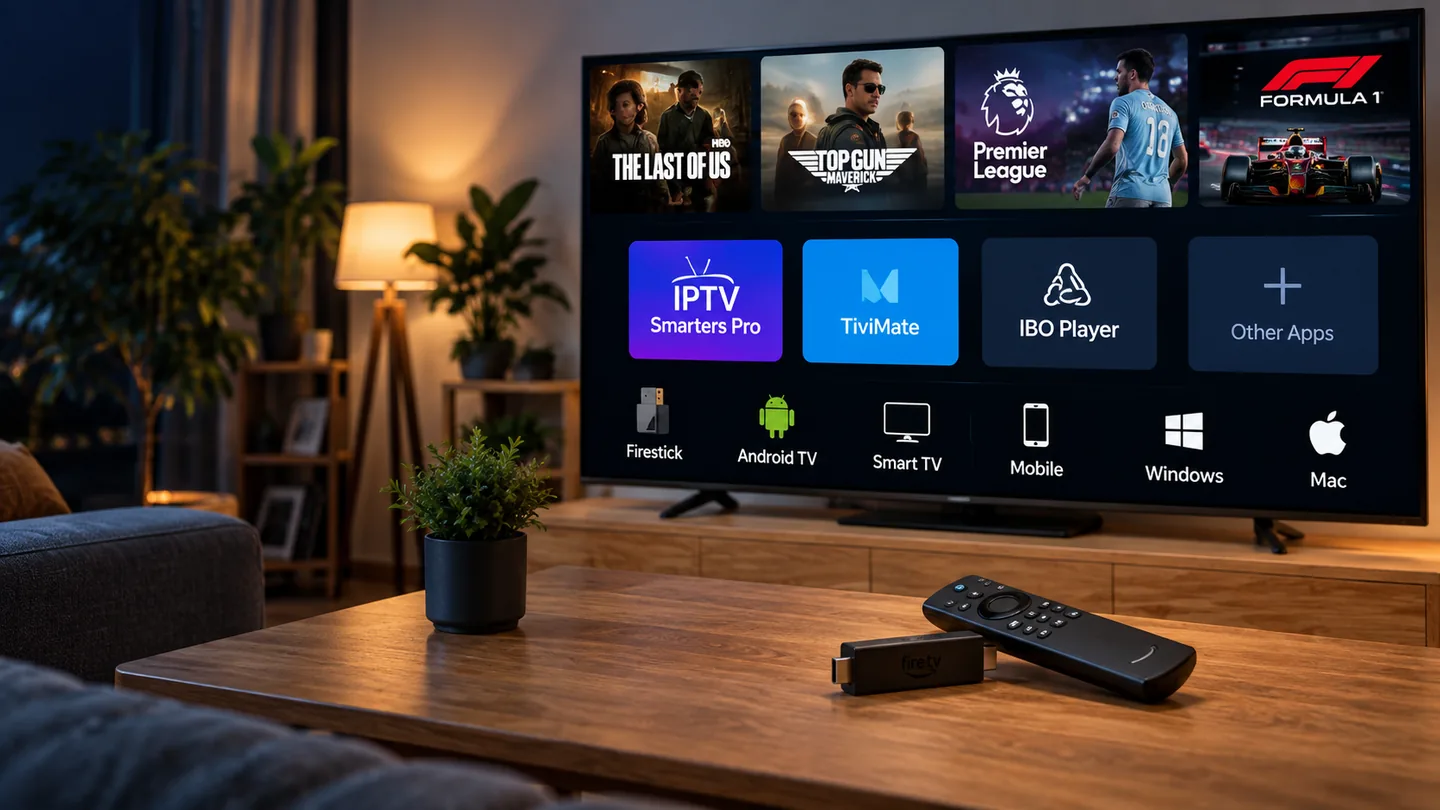
IPTV Setup UK for Supported Devices
Follow our IPTV setup UK instructions for Firestick, Android TV, Smart TV, IPTV Smarters, TiviMate, Windows, Mac, iPhone, iPad and MAG devices. Choose your device below and follow the relevant installation steps.
Firestick Setup
Requirements
Amazon Fire TV device, internet connection, and a compatible IPTV player.
Steps
- Install a compatible player from the official app store when available.
- Open the player and choose the login or playlist method that matches your access details.
- Enter the details carefully and save the profile.
- Allow the app to load and test a stream.
Troubleshooting
If the app will not load content, recheck credentials, restart the device and router, and confirm the app supports your access format.
Android TV Setup
Requirements
Android TV / Google TV device and a compatible IPTV player from a trusted source.
Steps
- Open Google Play and install your chosen IPTV player.
- Launch the app and select the supported login method.
- Enter the supplied details and save.
- Test playback and adjust quality if your app provides that option.
Troubleshooting
Clear the app cache, restart the device, verify date/time settings and test a wired connection if Wi-Fi is unstable.
Smart TV Setup
Requirements
Compatible Samsung, LG or other Smart TV with an IPTV player available for its operating system.
Steps
- Search the TV app store for a compatible IPTV player.
- Install and open the app.
- Follow the app instructions to add your access details or playlist.
- Refresh the app and test playback.
Troubleshooting
App availability varies by model and region. If an app is unavailable, consider a supported external streaming device.
IPTV Smarters Setup
Requirements
A supported device with a legitimate IPTV Smarters variant installed.
Steps
- Open IPTV Smarters and accept the app terms.
- Choose the login method that matches your provider details.
- Create a profile with a memorable name.
- Load the profile and test playback.
Troubleshooting
Check spelling, server URL format and internet access. Update or reinstall the app only from a trusted source.
TiviMate Setup
Requirements
Android TV-compatible device with TiviMate installed.
Steps
- Open TiviMate and choose Add Playlist.
- Select the playlist/login method matching your access details.
- Enter the information and wait for the playlist to load.
- Review player settings and test playback.
Troubleshooting
TiviMate is designed primarily for Android TV-style devices. Confirm you are using a supported platform and current app version.
Windows Setup
Requirements
Windows PC and a compatible IPTV player.
Steps
- Install a trusted compatible player.
- Add your access details using the supported method.
- Save the profile and allow content to load.
- Test video and audio playback.
Troubleshooting
Allow the app through your firewall if appropriate, update graphics/network drivers and verify the account details.
Mac Setup
Requirements
Mac computer, current macOS and a compatible IPTV player.
Steps
- Install a compatible player from a trusted source.
- Add the access details supplied to you.
- Save the profile.
- Test playback and audio output.
Troubleshooting
Check macOS permissions, app updates and network connectivity.
iPhone Setup
Requirements
iPhone and a compatible IPTV player from the App Store.
Steps
- Install a suitable IPTV player.
- Open the app and add your access details.
- Save the profile.
- Test on Wi-Fi and, if desired, mobile data subject to your data plan.
Troubleshooting
Check app permissions, network access and background restrictions.
iPad Setup
Requirements
iPad and a compatible IPTV player.
Steps
- Install a player from the App Store.
- Add the supplied credentials or playlist.
- Save and refresh the profile.
- Test playback in portrait and landscape orientations.
Troubleshooting
Restart the app, check iPadOS updates and verify your network.
MAG Setup
Requirements
Compatible MAG device and portal information supplied for your authorised service.
Steps
- Connect the device to your TV and network.
- Open system or portal settings.
- Enter the portal details exactly as supplied.
- Restart the device and test the portal.
Troubleshooting
Do not factory reset unless necessary. Recheck portal URL and network settings first.
Need Help With Your Device?
Request a trial first or contact support with your device model and app name.
Before installing an IPTV player
Identify your device, its operating system and the access format provided for your account. Choose a reputable application compatible with both the device and your access details. Download software from the platform’s official app store or the developer’s official website where available.
Keep the device and player updated. Have a stable broadband connection and your account details ready, and check whether the player itself requires a separate payment. IPTV player applications are not, by themselves, subscriptions to television content.
A practical troubleshooting order
If setup fails, test your internet connection first, then confirm the account details and player configuration. Restart the player, check for updates and try another permitted network connection to distinguish local connectivity problems from account or service issues.
If buffering persists, pause other downloads, move closer to the router or use a wired connection where possible. Document the device, player, time and error before requesting help; this makes troubleshooting more efficient.
