 Skip to content
 Running out of internal storage happens quickly when you load up your media setup with apps and cached video files. Most media boxes ship with limited onboard capacity. You don’t have to keep deleting your favourite applications just to free up a few gigabytes. Android TV streaming devices often include a USB port that lets you plug in external flash drives or portable hard drives.
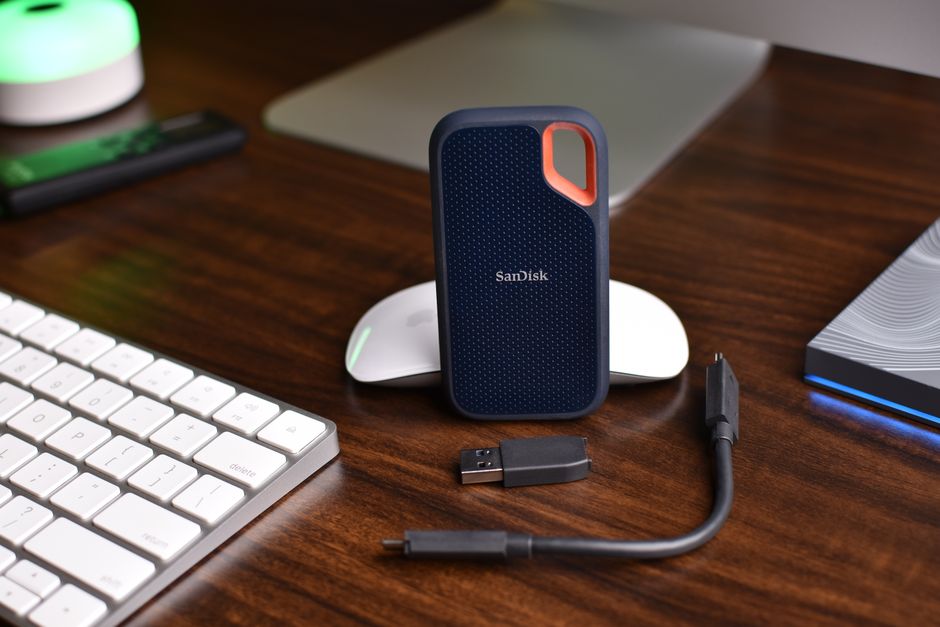
Adding extra capacity transforms how you handle local media files and downloaded apps. UK households use these USB drives to store personal video libraries, recorded content, or large media player applications. But you can’t just plug any old drive in and expect it to work straight away. You need to prepare the hardware correctly.
Choosing the Right USB Drive for Your Media Player
Before you connect anything, check your hardware specifications. Most modern Android TV streaming devices feature standard USB-A ports, though some compact sticks require an OTG (On-The-Go) cable adapter. USB 3.0 drives offer much faster transfer speeds than older USB 2.0 models. Speed matters when you stream high-definition video files from local storage.
Capacity is another major decision. Most streaming boxes support drives up to a few terabytes, but formatting limits apply. A standard 64GB or 128GB thumb drive suits app storage well. If you want to store massive film collections, a portable external solid-state drive works best.
Formatting Your USB Drive for Android TV
Plug your chosen drive into the USB port on your media box. A notification usually pops up on screen straight away. If nothing appears, navigate to your device settings and open the storage menu.
Android usually gives you two choices for formatting a new drive. You can format it as removable storage or device storage. Removable storage lets you plug the drive into a Windows PC or Mac to transfer files easily. Device storage encrypts the drive specifically for that single streaming box, merging the external capacity with your internal memory.
Choose removable storage if you plan to move downloaded media files between computers and your television. Pick device storage if your main goal is installing larger apps that refuse to fit on internal flash memory. Keep in mind that formatting erases everything currently on the drive. Back up your important files on a computer first.
Moving Apps and Media Files
Once the formatting finishes, you can start shifting data. If you set the drive up as internal device storage, head into your application settings. Select an installed app, choose the storage option, and move it across to the new USB drive.
Not every app allows relocation. System applications and certain streaming clients lock themselves to internal memory. Allowances vary by developer and app version. For local media playback, simply copy your video and audio files onto the USB drive using a computer, plug it back into the media box, and open your preferred media player application to browse the folders.
If you want help with the initial configuration of your hardware, our Android TV setup guide covers basic network and account steps.
Troubleshooting Common USB Storage Issues
Sometimes the streaming box fails to recognise an attached drive. Power down your television and unplug the media box completely. Reconnect the USB drive firmly, then power everything back up. A loose connection causes most detection failures.
File system compatibility also causes headaches. Android boxes prefer FAT32 or exFAT formats for removable storage. NTFS drives might mount as read-only on certain firmware versions, meaning you cannot delete or add files directly from the television interface. Reformatting the drive to exFAT on a PC usually solves this stubborn issue.
Related reading
- 7 Things to Check Before Buying a Smart TV for Streaming in the UK
- 4 Things to Check When Setting Up Android TV for Streaming
