 Skip to content
 Watching a Saturday night drama on BBC iPlayer or catching up on live sport through ITVX should be a straightforward experience. When the characters on screen start speaking long before the sound reaches your ears, the viewing session immediately turns frustrating. Lip-sync errors happen more often than most viewers realise across UK living rooms. Thankfully, you don’t need to put up with the mismatch. You can usually sort out the problem yourself in just a few minutes.
Audio and video streams travel across different pathways inside your hardware. Sometimes those signals fall out of step. Hardware differences, software bugs, and external audio gear all play a part in creating this annoying lag.
Step 1: Check the Source of the Lag
Before you start pulling cables out of the back of your television, you need to find out where the delay is actually coming from. Not all apps behave the same way. Switch over to a different application like Netflix or Channel 4, then play a different programme. Does the sound still drift out of sync? If the problem only happens on one specific app, the issue likely sits with that application’s software rather than your main hardware setup. If every single app suffers from poor lip-sync, your television’s internal processing or your external sound system is the real culprit.
Step 2: Adjust Settings to Fix Audio Delay on Smart TV Displays
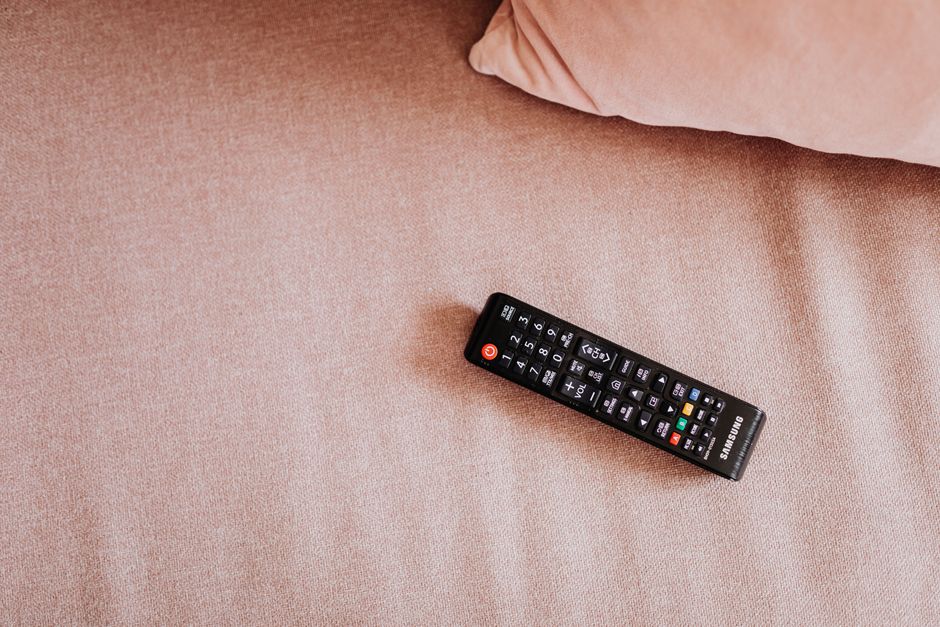
Most modern televisions include built-in tools designed to tackle timing mismatches head-on. Grab your remote and open up the main settings menu. Look for the audio or sound section. You should spot an option labelled lip-sync, audio delay, or digital output delay. Manufacturers hide these settings in slightly different places depending on the brand. Samsung and LG units usually place them under advanced sound settings.
Slide the adjustment bar incrementally. Most sliders measure adjustments in milliseconds. If the sound arrives too early, add a small delay to match the picture. If the sound arrives too late, reduce the delay value until everything aligns naturally. Watch a talking head scene closely while making these tweaks. News broadcasts work best for this test because presenters look straight at the camera while speaking.
Step 3: Managing External Soundbars and AV Receivers
Soundbars transform built-in television speakers, but they often introduce noticeable audio lag. Digital audio signals take a fraction of a second to travel from your TV down an HDMI cable or optical wire into an external speaker. Check how your soundbar connects to the screen. HDMI ARC or eARC ports handle timing automatically through consumer electronics control protocols. If you use an optical cable, your TV has to process the audio conversion separately, which frequently causes delays.
Check the companion remote that came with your soundbar. Dedicated sound systems often feature their own independent delay settings. Setting a delay on the TV and another conflicting delay on the soundbar makes the timing worse. Keep your main audio adjustments centralised on the television itself whenever possible.
Step 4: Clear App Cache and Check for Software Updates
Streaming applications store temporary files to load menus faster. Over time, those cached files corrupt or bloat, slowing down media processing and ruining synchronisation. Head to your device storage menu and clear the cache for the misbehaving application. If you use a streaming stick like an Amazon Fire TV or Google TV device, restarting the hardware entirely clears out temporary glitches.
Software bugs also cause severe playback errors. Television manufacturers push firmware updates regularly to patch these exact flaws. Check your TV’s system settings to ensure you run the latest operating system version. App developers update their software suites frequently as well, so force an update through your device’s app store.
Step 5: Review Your Network Connection
Severe network congestion forces streaming apps to drop video frames while struggling to keep audio playing smoothly. When data packets struggle to reach your living room, the app constantly tries to catch up. Readers who experience erratic playback alongside timing slips might want to examine their home network setup. Sometimes connection stability matters far more than raw download speeds. For more details on local connectivity, our guide to smart TV Wi-Fi and Ethernet myths explores how different connection types affect overall streaming performance across UK households.
Final Fine-Tuning Tips
If standard adjustments fail to resolve the problem, try changing the audio output format in your television’s sound menu. Switch from Dolby Digital or bitstream output to PCM. PCM forces your TV to decode the audio signal before sending it to your speakers, which bypasses complex digital handshakes that frequently cause timing drift. Test your adjustments thoroughly across live broadcasts and on-demand recordings to confirm the fix holds steady before settling down to watch your favourite programmes.
