 Skip to content
 Getting Started with Android TV App Settings
Streaming television through an internet connection has changed how we watch shows and live broadcasts in UK living rooms. Many households now rely on media players running Google’s operating system to access their preferred entertainment. If your live streams keep buffering or your video quality drops unexpectedly, the root cause might hide inside your Android TV app settings rather than your broadband speed.
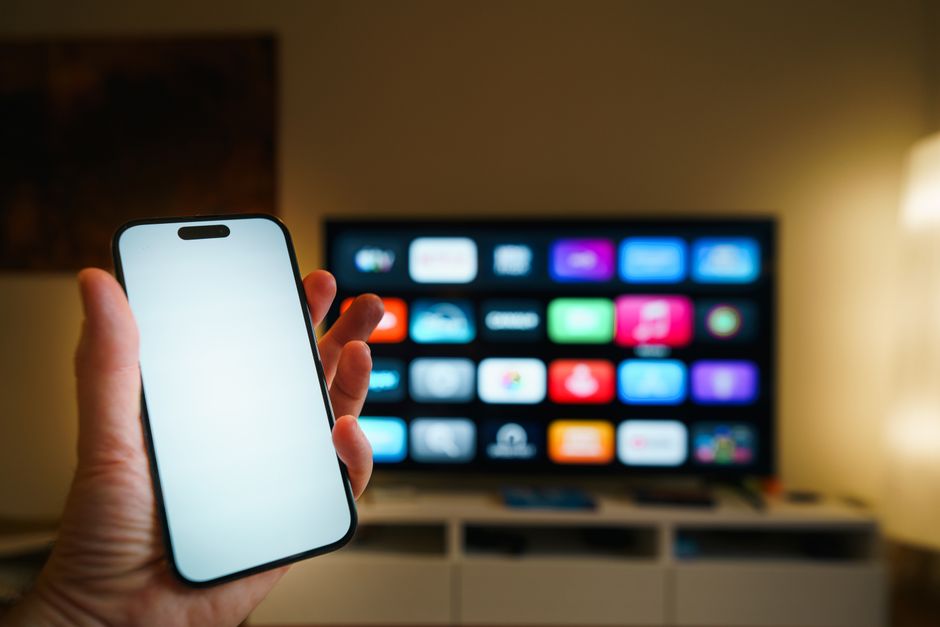
You don’t need technical wizardry to fix these issues. Most streaming glitches trace back to default configurations that weren’t optimised for your specific internet connection or display hardware. Let’s walk through the actual adjustments that make a noticeable difference in daily playback performance.
Checking Storage and System Memory
Your media player needs breathing room to handle high-definition video streams without stuttering. When internal storage gets close to full capacity, background processes slow down. Head into your main system preferences, open the storage menu, and see how much space remains.
If your device looks packed, our Smart TV storage and performance myths vs facts in UK homes breakdown covers what actually matters for daily use. Uninstalling unused utilities frees up vital cache space. A clean system runs smoother and handles live video streams far better.
Adjusting Video Playback and Hardware Acceleration
Default video decoders don’t always match your television’s capabilities. Open your specific media player application and look for playback preferences. Hardware decoding usually provides the most stable performance because it offloads processing work from the main CPU to dedicated graphics chips.
Some applications default to software decoding to ensure compatibility with older hardware. If your television features a modern quad-core processor, switch this to hardware acceleration. You’ll notice fewer frame drops during fast-moving sports broadcasts or high-framerate content.
Managing Buffer Sizes and Network Caching
Internet speeds fluctuate throughout the evening across UK neighbourhoods. Adjusting your buffer size inside your Android TV app settings helps smooth out those temporary connection dips. A larger cache gives your player extra data to draw from when your broadband temporarily slows down.
Don’t set the buffer to maximum if your connection is already rocky. An oversized cache takes longer to recover once a stream drops. Medium settings usually strike the right balance for standard fibre connections.
Audio Output Configuration
Getting your picture right means nothing if your sound drops out or stays out of sync. Navigate to the audio output section inside your streaming software. Match these settings to your actual setup.
If you’re using built-in television speakers, keep audio output on standard stereo. Selecting surround sound formats like Dolby Digital when you only have two speakers creates audio delay issues. If you use a soundbar or AV receiver, enable passthrough so your external kit handles the audio decoding directly.
Keeping Your Software Updated
App developers regularly push patches that fix memory leaks and playback bugs. Check the Google Play Store on your television weekly to ensure your installed software runs the latest version. Automatic updates sometimes fail if your system storage runs critically low, making manual checks necessary.
Readers configuring a fresh box can also review our 4 things to check when setting up Android TV for streaming guide for additional foundational steps. Taking ten minutes to properly tune your device prevents hours of frustration later on.
Related reading
- 5 Essential Checkpoints Before Using Your Fire TV Stick UK Setup
- How Do I Find and Install Legal IPTV Apps in the UK?
