 Skip to content
 - Getting Started With Your New Hardware
- Step 1: Connecting to HDMI and Power
- Step 2: Selecting the Correct Source Input
- Step 3: Establishing Your Network Connection
- Step 4: Signing In and Region Configuration
- Step 5: Installing Essential UK Applications
- Step 6: Fine-Tuning Display and Audio Settings
- Troubleshooting Common Setup Roadblocks
Getting Started With Your New Hardware
Unboxing a fresh piece of living room tech brings a certain kind of satisfaction. You pull the HDMI stick or media box out of the cardboard box. You untangle the power cable. Then you stand behind your television and try to find an empty port without dropping your cup of tea. Doing a proper streaming device setup takes a little patience, but the steps are straightforward once you know what to plug where.
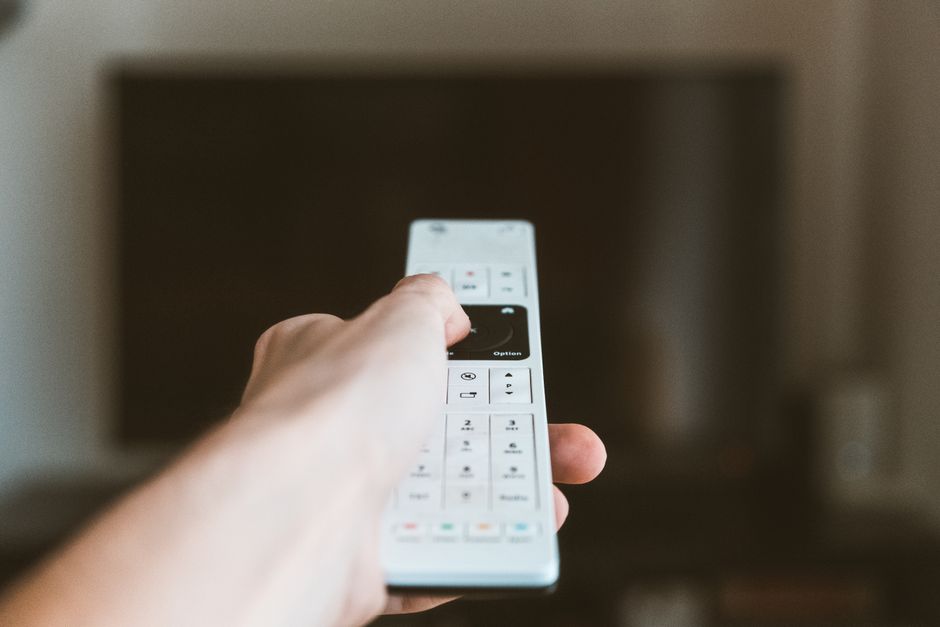
Most modern UK households have at least one smart television hanging on the wall or sitting on a media unit. Built-in apps work fine for casual viewing. Dedicated hardware often runs faster and supports a wider range of software. That makes a separate box or stick worth the effort. Let’s look at how to get everything working properly without losing your sanity.
Step 1: Connecting to HDMI and Power
Find the HDMI ports on the side or back of your television. Most sets feature at least two or three. Plug your streaming stick directly into HDMI one or two. If you bought a larger set-top box, use a standard HDMI lead to connect it to the screen.
Pay attention to port labels. Some ports support higher refresh rates or eARC for soundbars. Regular HDMI ports work fine for standard video playback. Plug the power cable into the device next. Connect the other end to a wall socket rather than a USB port on the back of the television. Wall sockets deliver a steady electrical current. USB ports on older tellies often lack enough power, leading to random reboots or startup errors.
Step 2: Selecting the Correct Source Input
Turn on your television using your normal remote. Press the source or input button. A menu will appear on screen showing HDMI one, HDMI two, and other older connections. Select the specific port where your hardware is plugged in.
You should see a loading screen or a welcome animation within a few seconds. If the screen stays black, double-check your power light. Make sure the plug is switched on at the wall. Swap the HDMI cable or try a different port if the problem persists. Faulty leads happen more often than people think.
Step 3: Establishing Your Network Connection
Every piece of streaming hardware needs an active internet link to pull in data. During the initial wizard, you will see a list of available wireless networks. Choose your home Wi-Fi name from the list. Type in your wireless password carefully using the on-screen keyboard.
Wireless signals can fluctuate based on thick walls and kitchen appliances. If your router sits far away from the living room, you might experience drops in video quality. Readers who want a rock-solid connection can check our guide on smart TV Wi-Fi vs Ethernet to see if a wired cable suits their room layout better.
Signal interference ruins many viewing sessions. If you stick with wireless, make sure your router is placed out in the open. For anyone struggling with dropouts, testing your wireless performance using our Wi-Fi signal strength checking guide helps pinpoint dead zones in the house.
Step 4: Signing In and Region Configuration
Once the network connects, the software will usually check for system updates. Let this process finish. Interrupting an update can corrupt the operating system files.
Next, the device will ask you to sign in with an existing user account. Amazon devices require an Amazon login. Google TV devices need a standard Google account. Apple boxes need an Apple ID. Make sure you set your region to the United Kingdom. This ensures your local time zone matches and your app store surfaces British broadcast applications correctly.
Step 5: Installing Essential UK Applications
With your account active, you arrive at the home screen. Now you can download your favourite software. UK viewers typically want access to catch-up services like BBC iPlayer, ITVX, Channel 4, and My5.
Open the built-in app store on your hardware interface. Search for each broadcaster by name. Click download or install. Most apps download within a minute depending on your broadband speed. If you want to understand how different television platforms handle these installations behind the scenes, take a look at our breakdown of smart TV operating systems.
Step 6: Fine-Tuning Display and Audio Settings
Default settings rarely match your specific television hardware. Dive into the settings menu of your new streaming device. Look for display output settings.
Set your resolution to match your screen capability. If you own a 4K television, select 4K Ultra HD at fifty or sixty hertz. Avoid forcing high-end resolutions on older HD screens because it causes scaling issues. Check your audio settings too. Change the audio output to stereo or Dolby Digital depending on whether you use built-in television speakers or an external sound system.
Troubleshooting Common Setup Roadblocks
Sometimes things go wrong during a streaming device setup. Remote controls fail to pair. Wi-Fi passwords get rejected. Apps refuse to open.
If your remote stops responding, pull the batteries out for ten seconds and put them back in. This forces a hardware reset. For stubborn network issues, restart both your broadband router and your streaming box at the same time. A clean reboot clears temporary cache files and re-establishes a fresh IP address with your router.
Keep your software updated. Manufacturers push out security patches and bug fixes every month. Turning on automatic updates saves you from doing it manually. Enjoy your newly configured setup and your favourite television programmes.
Related reading
- How to Configure Streaming App Settings on Android TV in UK Living Rooms
- 5 Essential Checkpoints Before Using Your Fire TV Stick UK Setup
